A QR code sticker may be inexpensive to print, but one mistake is repeated across every copy in the print run. An outdated destination, an undersized code, or poor contrast can make hundreds of printed stickers ineffective.
This guide explains how to create a QR code for your sticker that remains scannable, editable, and trackable after printing. You will learn how to choose the right QR code type, size it for real scanning conditions, prepare it for printing, keep its destination editable, and measure the scans it receives.
- What is a QR code sticker?
- Three ways QR code stickers fail
- Static or dynamic: the decision that determines whether you reprint
- How to make QR code stickers with QRCodeChimp
- Design rules that keep a sticker scannable
- QR code sticker ideas for businesses
- What scan data can tell you
- When you need different codes, not more copies
- Create QR code stickers that keep working
- Preguntas frecuentes
What is a QR code sticker?

A QR code sticker is a physical adhesive sticker with a QR code printed on it. When someone scans the code with a smartphone, it opens the linked content or action, such as a webpage, menu, review page, form, PDF, or contact information.
QRCodeChimp also uses the word “sticker” for a design feature. These are predesigned frames with built-in CTA text that appear around a QR code before it is downloaded.
The two work together:
- Agregue un QRCodeChimp CTA sticker to help people understand why they should scan.
- Download the complete design.
- Add it to the artwork for your physical sticker.
- Print the sticker yourself or through a printing provider.
????For QR codes integrated directly into product labels, tags, or packaging artwork, see this guide to QR codes on product labels.
Three ways QR code stickers fail
Most preventable QR code sticker problems come from the destination, QR code design, or lack of tracking. The sticker material, finish, surface, and placement can also affect whether the final code scans reliably.
❌ The destination becomes outdated
A static QR code stores the destination directly in its pattern. Once the code is printed, that destination cannot be changed.
If the original webpage is removed, the menu moves, or the campaign URL changes, the sticker will continue opening the old address. It may lead to outdated information or an unavailable page.
A dynamic QR code uses a short redirect URL. You can update the destination without changing or reprinting the QR code.
❌ The code does not scan
A QR code may work on a computer screen but fail after printing because it is:
- Too small for the expected scan distance
- Printed with insufficient contrast
- Cropped too close to the edges
- Placed under reflective lighting
- Wrapped around a sharply curved surface
- Stretched or distorted in the artwork
- Printed from a low-resolution file
Scanning failures often go unreported. People may try once, assume the code does not work, and move on.
❌ You cannot measure the response
Without QR code scan analytics, you cannot easily determine whether people scanned the sticker, when scans occurred, or which placement performed better.
A dynamic QR code allows you to measure scan activity in QRCodeChimp. This helps you compare placements, identify ineffective campaigns, and make better decisions about future print runs.
Static or dynamic: the decision that determines whether you reprint
A static QR code can work well when the information will remain permanent and you do not need QRCodeChimp scan analytics.
A código QR dinámico is usually more practical when the sticker will be distributed publicly, used for a campaign, or kept in place for a long time.
| Consideración | Código QR estático | Código QR dinámico |
|---|---|---|
| Destination after printing | No puede ser cambiado | Can be updated without reprinting |
| QRCodeChimp análisis de escaneo | No disponible | Available based on the plan |
| Analítica web | May record the visit, but QRCodeChimp cannot identify or report it as a QR code scan | Se puede combinar con QRCodeChimp analytics and supported tracking options |
| Densidad de patrones | Long URLs can produce denser patterns | A short redirect can keep the pattern less dense |
| Más adecuado para | Permanent text, Wi-Fi details, email, phone, or fixed information | Menus, offers, review pages, campaigns, forms, product information, and frequently updated destinations |
Static QR codes do not provide scan analytics in QRCodeChimp, though website analytics may still record visits to a tagged URL. Dynamic QR codes let you track scans, update the destination after printing, and often keep the pattern less dense by using a short redirect, which can help on smaller stickers.
How to make QR code stickers with QRCodeChimp
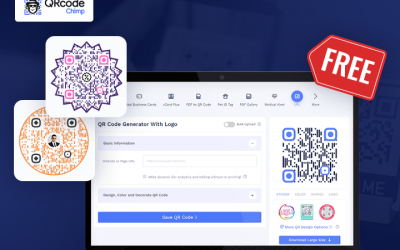
QRCodeChimp helps you create, customize, manage, and track the QR code. You can then add the downloaded code to your sticker design and arrange the physical printing separately.
1. Choose the right QR code solution
Start with what you want people to access or do after scanning.
Depending on your requirements, you can create a QR code for:
- Un sitio web o página de destino
- Una página de producto
- Multiple links with a Multi-URL QR Code
- A collection of documents with a PDF Gallery QR Code
- A single PDF
- Una página de reseñas de Google
- Un menú
- Una forma
- Perfiles de redes sociales
- Información de contacto
- A map location
- An app download
- Un video
- Other content supported by QRCodeChimp locales
Choose the solution that best matches the purpose of the sticker. The destination should also match the promise communicated by the sticker’s CTA.
2. Check whether the solution is static or dynamic
Cosas QRCodeChimp solutions are dynamic only, while others may let you choose between static and dynamic QR codes.
When both options are available, use a dynamic QR code if you want to:
- Update the destination after printing
- Track scans in QRCodeChimp
- Compare sticker placements
- Run a campaign that may change over time
- Avoid reprinting stickers when the linked content changes
A static QR code may be suitable when the encoded information is permanent and you do not need QRCodeChimp scan analytics.
3. Personaliza el código QR
Customize the colors, shape, pattern, and logo while keeping the code easy to scan.

Use strong contrast between the QR code and its background. Avoid enlarging the logo until it covers a significant part of the code, and do not obstruct the three position markers in the corners.
4. Add a CTA sticker
Elige de 150 + QRCodeChimp stickers with built-in CTA text. Select one whose wording matches what people will receive after scanning.

The CTA should set a clear expectation. A person is more likely to scan when they understand whether the code opens a menu, review page, offer, form, guide, or contact page.
5. Download the QR code for printing
QRCodeChimp provides PNG and PDF downloads by default, with the maximum available resolution depending on the plan.
A high-resolution PNG can work well when the QR code will be printed at a fixed size. PDF is useful when you need to place the code into a print layout or share it with a printing provider.
SVG can be enabled for your account on request. If your printer specifically requires a scalable vector file, confirm its software requirements before preparing the final artwork.
6. Print, apply, and test one sample
Do not approve the full print run based only on a digital preview.
Print one sample at the final size and apply it to the actual product, packaging, equipment, window, table, or other surface where it will be used. Then test it:
- From the expected scanning distance
- Under the lighting at the final location
- From different angles
- With both Android and iOS devices
- After applying any laminate or protective coating
- After placing it on the product or surface
- Across the curved area, if it is being applied to a bottle, container, or rounded product
A QR code that scans before application may become harder to scan after it is placed on a curved, reflective, textured, or uneven surface. Approve the complete print run only after the applied sticker works reliably.
6. Print and test one sample
Do not begin the full print run immediately.
Print one sample at the final size, place it on the intended surface, and scan it:
- From the expected distance
- Under the lighting at the final location
- From different angles
- With both Android and iOS devices
- Before and after applying it to the surface
Only approve the complete print run after the physical sample works reliably.
Explorar QRCodeChimp Soluciones and choose one to create a QR code for your sticker.
Design rules that keep a sticker scannable
The final scan experience depends on the size, contrast, material, placement, and quality of the printed sticker.
Size the code for the scan distance
A commonly used starting point is a 10:1 scan-distance ratio.
Divide the expected scanning distance by ten to estimate the minimum QR code width:
- 30 cm scanning distance: approximately 3 cm QR code
- 50 cm scanning distance: approximately 5 cm QR code
- 2 metre scanning distance: approximately 20 cm QR code
Measure the QR code itself, not the complete sticker containing the CTA, logo, or other design elements.
For close-range applications, approximately 2 × 2 cm is a practical safe starting point. Smaller QR codes may work under controlled conditions, but they require careful testing because data density, print quality, camera performance, and lighting can all affect scanning.
????Aprenda más: Utilice nuestra QR code size guide to choose the right dimensions for your expected scanning distance.
Preserve the quiet zone

The quiet zone is the clear area surrounding the QR code. It helps a scanner distinguish the code from nearby text, images, borders, and other design elements.
No haga:
- Crop the QR code tightly
- Place text against its edges
- Continue a background pattern into the quiet zone
- Allow the sticker-cut line to enter the clear margin
Keep all four sides clear in the final artwork.
Utilice un fuerte contraste

A dark QR code on a light background is the safest combination.
Brand colors can work as long as the contrast remains strong. Avoid combinations such as:
- Orange on pink
- Light gray on white
- Medium blue on navy
- Similar shades of the same color
Light QR patterns on dark backgrounds can work, but they should be tested more carefully across devices and print conditions.
Keep the logo under control

A logo can make the QR code recognizable and consistent with your brand, but it also covers part of the pattern.
Keep the logo away from the three corner position markers and avoid making it unnecessarily large. Higher error-correction settings may help the QR code tolerate a logo or minor surface damage, but they can also make the pattern denser.
Always test the final version at its actual printed size.
Choose the material and finish for the location
The right material depends on how and where the sticker will be used.
- Use paper stickers for dry, short-term indoor applications.
- Use vinyl or another durable synthetic material for moisture, cleaning, abrasion, or outdoor exposure.
- Ask for outdoor-rated printing and protection if the sticker will face rain, sunlight, or regular handling.
Matte finishes generally produce fewer reflections and are safer under direct or variable lighting. Gloss can still work, but test it under the lighting and viewing angles at the final location.
Curved surfaces can distort the QR pattern. On bottles, cans, poles, or other rounded objects, keep the code within the flattest available section.
Test the physical sticker
Testing the digital file is not enough.
The finished sticker should be tested after:
- Impresión
- Corte
- Applying it to the intended surface
- Adding any laminate or protective coating
- Exposing it to the actual lighting conditions
????Aprenda más: Sigue nuestro completo QR code printing guide for detailed preparation, sizing, placement, and testing tips.
QR code sticker ideas for businesses
The best QR code sticker ideas start with the action you want people to take. Match the destination and CTA to the sticker’s location instead of using a generic “Scan me” message.
Storefront windows and entrances
A QR code sticker on a window or door can help people act before entering or after the business has closed. It might open current hours, the live menu, an appointment page, an online store, or a location-specific offer.
Account for viewing distance when choosing the size. A code placed at eye level beside the entrance can be smaller than one intended to be scanned from the pavement.
Tables, counters, and checkout areas
Customers naturally pause at tables, counters, and payment areas, making these useful locations for review, feedback, menu, loyalty, or repeat-purchase stickers.
Keep the action relevant to that point in the customer journey. For example, a Código QR de revisión de Google belongs near the end of the experience, while a menu or ordering code should appear before the customer needs to make a decision.
Products, packaging, and inserts
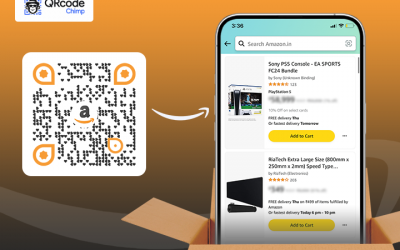
An adhesive QR code sticker can add useful digital information without redesigning the entire package. Depending on the product, it can provide:
- Setup, care, or usage instructions
- A demonstration video
- Registro de garantía
- Autenticación de productos
- Servicio al cliente
- Una página de reordenamiento
Use un Código QR PDF for one document. Choose a PDF Gallery QR Code when customers need access to several manuals, certificates, guides, or related files.
Test the sticker after applying it to the actual product or package. Curvature, texture, reflections, and surrounding artwork can affect scanning even when the loose sticker works correctly.
For QR codes incorporated directly into permanent product labels or packaging artwork, refer to the QR code label guide.
Equipment, assets, and storage areas
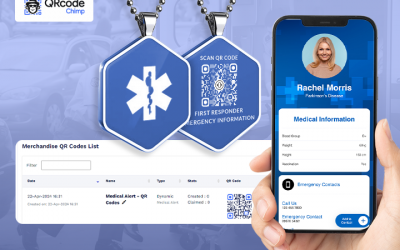
A sticker on a machine, tool, storage bin, shelf, or service unit can open instructions, an inspection form, a contents list, or a maintenance record.
Use one shared QR code when several items point to the same resource. Create a unique code for each asset only when it needs its own record, destination, or scan data.
💡Más información: Consulte las QR code organization system guide for more detailed operational use cases.
Events, booths, and merchandise
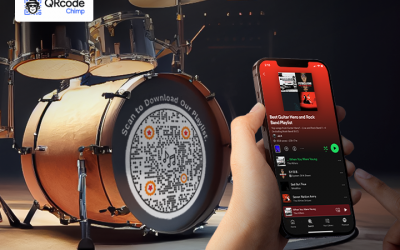
Event stickers can connect booth displays, giveaway packs, badges, or merchandise to information attendees may need during or after the event, such as a schedule, product demonstration, lead form, social profile, or session recording.
A dynamic QR code is useful when the destination changes across the event lifecycle. The same printed sticker can point to event information beforehand, live resources during the event, and recordings or follow-up content afterward.
????Más información: Learn how to use QR codes across the event lifecycle in our Códigos QR para eventos guía.
What scan data can tell you
Dynamic QR code analytics can show when scans occurred, the devices used, and approximate location information, depending on the plan and tracking settings.
Standard location reporting may be based on the scanning device’s IP address, so it should be treated as approximate. Precise GPS-based location tracking is available on eligible plans and requires the person scanning to grant location permission.
Compare sticker placements
Create separate dynamic QR codes for different placements, such as a window, counter, table, or product display.
Review the results over an appropriate testing period while accounting for differences in traffic, visibility, offer, and location.
Identify possible campaign problems
An unusually low number of scans may indicate:
- Pobre visibilidad
- Colocación débil
- An unclear CTA
- Poco tráfico peatonal
- An unappealing offer
- Scannability problems
- A mismatch between the sticker and its audience
Use the data as a signal, then inspect the physical placement and test the code again before drawing a conclusion.
Update campaigns without changing the sticker
A dynamic QR code allows the same sticker to support different content over time.
For example, a restaurant can link to a holiday menu in December and return to its regular menu in January without replacing the stickers on every table.
When you need different codes, not more copies
Printing 500 copies of the same sticker is a print quantity. It requires one QR code, which the printer repeats across the full run.
Bulk QR code creation is different. It is useful when the QR codes themselves must be unique, such as:
- One code for every location
- One code for every product or SKU
- One code for every machine or asset
- One code for every property
- One code for every campaign version
- One code for every employee
On plans that include bulk creation, QRCodeChimp can generate unique QR codes through spreadsheet upload. Each code can have its own destination and scan data. The account-management features available for organizing the codes depend on the selected plan.
If every printed sticker should open the same destination, create one QR code and ask the printer to reproduce it.
Create QR code stickers that keep working
A QR code sticker should remain useful long after it is printed. Choose the right QR code solution, size the code for its actual scan distance, preserve contrast and clear space, and test it after applying it to the final surface.
Use a dynamic QR code when you need to update the destination or measure scan activity without replacing the sticker. QRCodeChimp helps you create, customize, manage, and track the QR code, while you can print the physical stickers through your preferred printing provider.
Preguntas frecuentes
¿Qué tamaño debe tener una pegatina con código QR?
Utilice la distancia de escaneo prevista para determinar el tamaño. Una proporción de 10:1 es un buen punto de partida; por lo tanto, un código escaneado desde 30 cm debería tener aproximadamente 3 cm de ancho. Para uso a corta distancia, un tamaño mínimo práctico y seguro de alrededor de 2 × 2 cm.
¿Puedo cambiar el enlace después de imprimir la pegatina?
Sí, si utilizas un código QR dinámico, puedes actualizar su destino sin necesidad de cambiar ni reimprimir la etiqueta. Los destinos de los códigos QR estáticos no se pueden editar después de la impresión.
¿Por qué no se escanea mi pegatina con código QR?
Las causas más comunes incluyen un código pequeño, bajo contraste, espacio libre recortado, reflejos, mala calidad de impresión, distorsión o colocación sobre una superficie curva. Pruebe la pegatina aplicada en diferentes teléfonos, ángulos y condiciones de iluminación.
¿Qué formato de archivo debo usar para imprimir?
Utilice un archivo PNG de alta resolución para un tamaño de impresión fijo. El PDF es adecuado para diseños de impresión y para compartir con un proveedor de impresión. Solicite un archivo SVG si su imprenta necesita específicamente un archivo vectorial.
¿Puedo crear pegatinas con códigos QR gratis?
QRCodeChimpEl plan gratuito incluye códigos QR estáticos y un número limitado de códigos QR dinámicos con análisis básicos. La impresión de las pegatinas físicas se gestiona por separado.
¿Las pegatinas con códigos QR son resistentes al agua?
La resistencia al agua depende del material y el acabado. Para superficies exteriores, húmedas o que se limpian con frecuencia, utilice adhesivos sintéticos o de vinilo duraderos.
¿Cómo puedo realizar un seguimiento de los escaneos de las pegatinas con código QR?
Utilice un código QR dinámico para ver la actividad de escaneo en el QRCodeChimp Panel de control. Cree códigos separados para diferentes ubicaciones cuando necesite comparar su rendimiento.
También te puede gustar
¿Caducan los códigos QR? ¿Cuánto duran y por qué dejan de funcionar?
Los códigos QR no caducan. Sin embargo, los códigos dinámicos se pausan cuando se agotan los límites de escaneo o expiran los planes, y los enlaces rotos dejan de funcionar los estáticos. Aquí te explicamos cómo mantener los tuyos funcionando.
Códigos QR en carteles: ubicación, tamaño, diseño y ejemplos.
Dónde colocar un código QR en un póster, qué tamaño debe tener y con qué enlaces vincular, con ejemplos por caso de uso y las reglas de diseño que garantizan que los códigos sean escaneables.
Tarjeta de presentación de Apple Wallet: Cómo crearla, personalizarla y compartirla
Crea, personaliza y agrega una tarjeta de presentación de Apple Wallet con QRCodeChimpComparte tu tarjeta de presentación digital rápidamente, mantén tus datos actualizados y facilita las reuniones de networking presenciales.
Códigos QR para eventos: dónde colocarlos, qué enlazar y cómo realizar el seguimiento de los resultados.
Deja de enlazar todos los códigos QR de eventos a tu página de inicio. Descubre cómo usar códigos QR para eventos y qué incluir en carteles, entradas, credenciales y señalización de salida, con consejos sobre ubicación y tamaño.
Más Popular
Contactar Ventas